
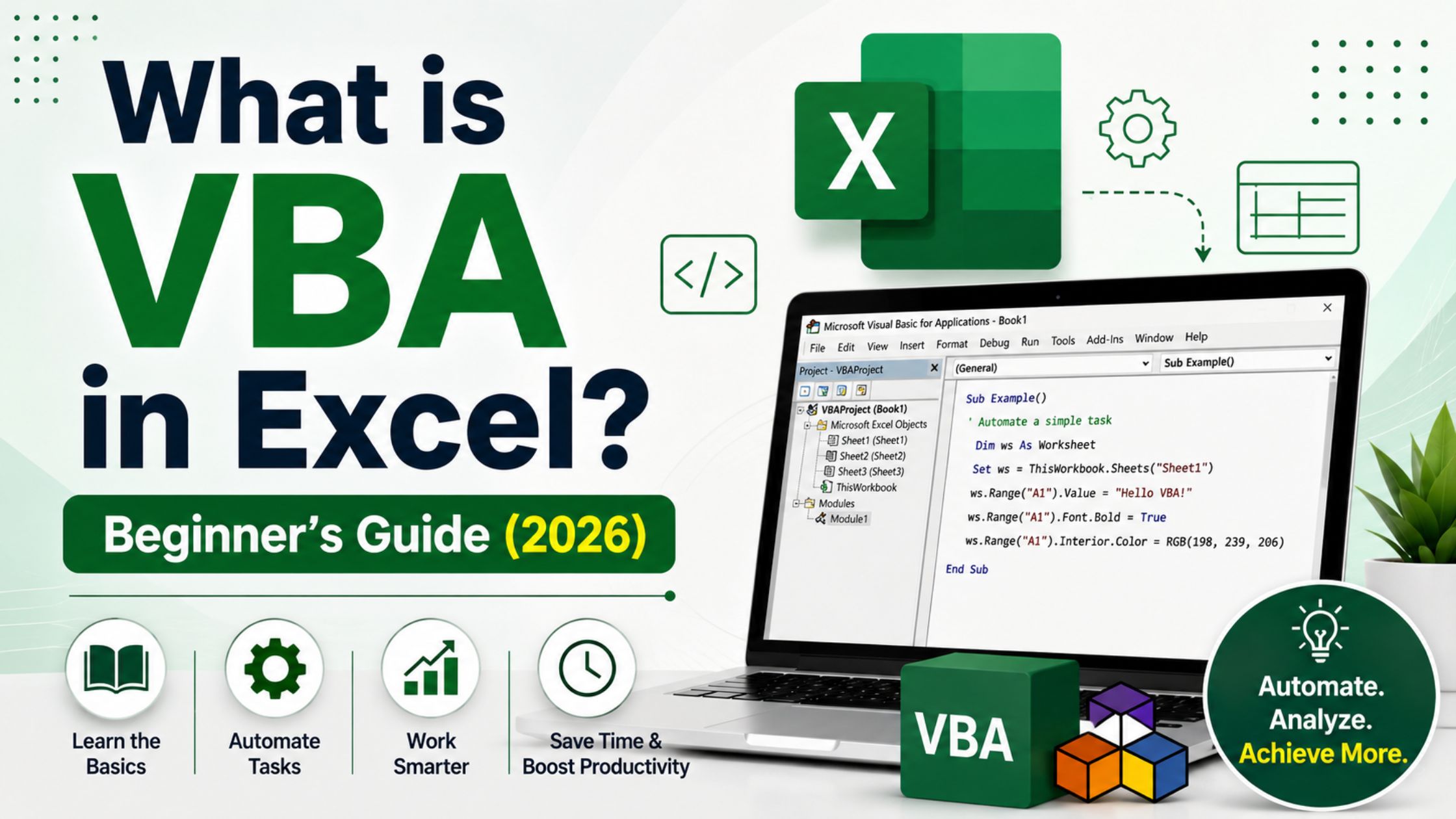
What is VBA in Excel? Beginner’s Guide (2026)
I am sure that by now many of you will have encountered situations where they clicked on one button to generate a report/send some emails/scrub thousands of rows of data. Chances are this was done using VBA.
This guide outlines what VBA is and gets you started with writing your own VBA code without requiring prior programming experience.
What is VBA?
So what does the word “VBA” stands for? Well, the answer is simple if you know about this program properly.
The term VBA means Visual Basic for Application. This is one of those terms where the whole term actually represents the programming language itself (which we will see shortly). So VBA is an embedded programming language in the application software packages provided by Microsoft such as Excel, Word, Access, and Outlook.
In simpler words, VBA is basically a scripting language contained in Excel that lets the user do various things with it. From automating specific tasks to making custom-made tools to controlling your excel sheet without even needing to click through anything on your mouse. And all these things can be done simply by learning some basic concepts behind writing code in this language called Visual Basic for Applications.
Visual Basic for Applications(VBA) is basically a scripting language that was introduced by Microsoft. This entire concept is based upon another older language made by Microsoft known as “Visual Basic.” However, unlike its parent version, VBA is created specifically for usage internally into office-related applications.
What is VBA Macros?
But this is where newbies usually get stuck. What’s VBA macros? Or do I need to write codes for everything?
First let me explain – the term ‘Macro’ itself means simply a series of instructions. These can be either written or recorded and will be run automatically in excel when triggered. In other words these instructions have been written in VBA. And the actual piece of code/Recording (macro) which does the work, we call it MACRO!
So don’t confuse between VBA & Macros, they’re totally different from each other.
Let me make it clear here – A Macro can be created with out any coding through the “Macro Recorder”, but those actions would be limited only to what you have recorded. Whereas if you want to write the actions in the whole programming languages known as VBA then it has got its own syntaxes, variables, logics etc… allowing you to write loops, conditionals, custom functions. So there’s no denying that writing the codes in VBA is much powerful!
In summary, although every Macro will be developed using VBA coding language, but all of your VBA codes don’t mean to get developed as Macros.
What language do you use for creating Macros in Excel?
So, What language do I use to create Macros in Excel?
Yes! You are right.
Visual basic for applications(VBA) is used to develop macros in excel.
With the help of an inbuilt macro recorder in excel, excel automatically translates our click & action into vba codes in the background. So that we can easily use these codes in future.
How to Open VBA in Excel
So now that we know why writing code can be useful for us as analysts let’s talk about how to start with it.
The very first thing that you need to do in order to write some code is to have access to the VBA editor. Let me show you how to open VBA in Excel:
- Open Excel and choose File, Options.
- Click Customize Ribbon.
- Make sure you check the Developer box here at the far-right side of this window. Then just hit OK.
Then you should see a Developer Tab on the Ribbon.
Select Developer and go to the bottom of the menu bar, click Visual Basic (you could also press Alt+F11 on windows and Fn+Option+F11 on Mac)
You’re going to find yourself inside the VBA Editor where you’ll be able to write, edit & run your code! There are several panels here, including the Project Explorer, the Code Window and the Immediate Window (a nice little area to play around with smaller chunks of code).
How To Write Some VBA Code In Excel As A Beginner?
First, you have to open up the Project Explorer by right-clicking on the Name Of Your Workbook, then go to insert & click module.
Then make sure that you create a sub procedure here, as normally vba code starts with ‘sub’ & ends with ‘end sub’. Now to execute this whole program just press F5 OR run.
Finally, you need to save the file as a Macro Enabled Workbook (.xlsm). And here is a sample of visual basic code. Here’s an example of visual basic code.
A simple example of visual basic code:
Sub SayHello()
MsgBox “Hello, welcome to VBA in Excel!”
End Sub
To write values into cells.
Sub EnterData()
Range(“A1”).Value = “Sales Report”
Range(“A2”).Value = 1000
Range(“A3”).Value = 2500
End Sub
Here’s an example where we use a loop (one of the most powerful features of VBA) to do this:
Sub HighlightHighSales()
Dim i As Integer
For i = 1 To 10
If Cells(i, 1).Value > 1000 Then
Cells(i, 1).Interior.Color = RGB(0, 255, 0)
End If
Next i
End Sub
This checks the first 10 rows in Column A and highlights in green if they are greater than 1000. This is an example of the type of automation you can create using this training.
In this course, we provide in depth training about Excel VBA. Our aim here is to provide Advanced training on how to use Excel VBA.
After mastering the fundamentals, you set the stage for some pretty cool advanced automation!
Is there a possibility of exporting multiple pdfs from excel vba?
Yes! If you have to create an invoice, payslip or monthly reports for different customers, looping over sheets and exporting them individually (e.g. ExportAsFixedFormat) makes sense.
Can we use excel vba to fetch data from webpages?
Absolutely! Either by using internetexplorer / winhttp object to download content, querying url’s structured data via querytables or by scraping html elements to extract what you need.
How can i merge excel workbooks in vba?
Open up all your source files via Workbooks.Open, iterate over worksheets and just Copy-Paste their contents into one big master-file before closing each individual file again (without saving).
How to Learn Macros in Excel
You can start by using the Macro Recorder. It helps you record actions and see the code it creates. Learn the basics of VBA programming. This includes variables, data types, loops, conditions and functions. Try automating something you do manually. This will help you understand the object model. You need to know how Workbook, Worksheet, Range and Cells are connected.
Create applications. Examples include a budget tracker, invoice generator or data cleaner. Learn to fix errors. Use features like On Error Resume to do this.
If you prefer a course look for an Excel VBA course. It should have projects and real business examples. Avoid courses with theory.
To enable Macros in Excel (Fixing Security Warnings):
When you open a file you might see a Security Warning. Macros have been disabled” bar. This is because Excel disables macros to protect you from code.
Here’s how to enable them:
- If you trust the files source click Enable Content in the bar.
- If the bar is not there go to File > Options > Trust Center > Trust Center Settings > Macro Settings.
- Choose to disable all macros with notification. This is safer than disabling or enabling all macros.
- If you create your files save them in a Trusted Location. Go to File > Options > Trust Center > Trusted Locations to do this. This way Excel won’t warn you each time.
Be careful with macros, from files you didn’t write or trust. Malicious macros can be a problem.
VBA Data Types and Variables
To write code you need to understand what variables are. Variables are like containers that hold information while your code is running.
The common types of data are:
- Integer – this is a whole number, like 1 or 250
- Long – this is a bigger whole number, used when Integer is not enough
- Double – this is a number, like 99.75
- String – this is text, like “Sales Report”
- Boolean – this is True or False
- The date and time values are also important.
- Variant – this is a type that can store any kind of data it is good for beginners but it is a bit slower
You declare a variable with the Dim statement then you give it a name and a type.
Sub DeclareVariables()
Dim customerName As String
orderTotal As Double
Dim isPaid As Boolean
customerName = “Rahul Sharma”
orderTotal = 4599.5
isPaid = True
End Sub
When you declare your variables properly it is much easier to read and fix your code especially when your macros get a bit long.
VBA functions and keywords are very important for anyone who is just starting out.
| Keyword/Function | Purpose |
| If…Then…Else | This runs code when a test is true or not |
| For…Next | This repeats an action a number of times |
| Do…Until | This repeats an action until a condition is not true |
| MsgBox | This pops up a message for the user |
| InputBox | This asks the user to enter a value |
| IsError | This checks whether a cell contains an error or not |
| IsEmpty | This determines whether a cell or variable is empty |
| Cells(row, column) | This refers to a specific cell using numbers |
| Range | This refers to a range of cells |
| Application.ScreenUpdating | This turns off screen updates for a bit |
Here are some basic building blocks that you will use in all of your VBA projects:
These are the basics that you will use every day when you are working with VBA.
How to Debug VBA Code
Even simple macros can go wrong sometimes because of typing mistakes or wrong cell references. Here are the best ways to use the VBA Editor to fix your code:
- Breakpoints: You click in the margin beside a line of code to stop execution at that line. Then you press F5 to run up to that point.
- Step through code – You press F8 to execute your code one line at a time and see what happens.
- You use the Immediate window: You press Ctrl+G to open it. Then you type ? and the variable name to quickly view the value of a variable.
- You add a Watch – You click on a variable and select “Add Watch” to monitor the value of the variable throughout the program.
- You deal with errors: You use On Error Resume Next to ignore errors or On Error GoTo ErrorHandler to go to a section of your macro that handles errors.
Fixing code is a skill that you can learn quickly with practice. Most of the time when you are working with VBA you are fixing code not writing code.
Automating Outlook Emails from Excel VBA
One thing that people often want to do is send emails from Excel without having to open Outlook. You can do this by using Outlooks object library within Excel VBA:
Sub SendReportEmail()
Dim OutlookApp As Object
Dim OutlookMail As Object
Set OutlookApp = CreateObject(“Outlook.Application”)
Set OutlookMail = OutlookApp.CreateItem(0)
With OutlookMail
.To = “manager@example.com”
.Subject = “Monthly Sales Report”
.Body = “Hi please find the monthly report.”
.Attachments.Add ActiveWorkbook.FullName
.Send
End With
End Sub
This is useful for sending out reports, reminders or notifications from a spreadsheet without having to copy and paste into an email client.
Here are some useful Excel VBA keyboard shortcuts:
| Shortcut | Action |
| Alt. F11 | Opens/Closes the VBA Editor |
| F5 | Runs the macro |
| F8 | Steps into line, by line |
| Ctrl. G | Opens the Immediate Window |
| Ctrl + Break | Ends a running macro |
| F9 | Sets a break point in the line |
These shortcuts are good to know when you are writing and testing code. They will save you a lot of time.
Choose The Right Course For A High-paying Career
Frequently Asked Questions
Well, if there’s anything you’d like to automate about what you do on your Excel worksheet, then chances are you’ll need to write some code using this programming language, known as VBA or Visual Basic for Applications.
It should be noted here that the visual basic used in an application is referred to as “VBA”. Henceforth, it will become clear why one uses such terminology when referring to Excel vba full form. But, let’s get back to our initial question first!
We could define macros as sets of instructions that are either recorded or programmed using VBA & Can be run/Executed By excel . We create these Macros using VBA language Given Below.
Macro is a collection of your recorded &/or programed instruction where VBA is full programming language which write & edits macros.
We have one name “visual basic for application(VBA)” this is a language with the help of which we can create macro in excel.
To do that you just press the Alt key & F11 key together Or go through file>>options>>Customize ribbon>>check the developer checkbox>>click on visual basic.
Well, You have to first open the VBA Editor, then create a module. Then, write your Sub Procedure inside the Sub & End Sub, and lastly Run that program by pressing ‘F5’. Lastly save the Workbook as a Macro-enabled workbook having an XLSM Extension.
No! Actually, this programming language is one of the simplest ones which resemble all those things we already perform on EXCEL like selecting a Cell And Copying Information From There.
Yes! You can use the ExportAsFixedFormat method in a loop for automatically exporting 1 or more sheets/reports as separated PDFs.
There are a number of ways that you can let your VBA code pull information from web pages:
– Use the QueryTables,
– Make winhttp requests or
– Parse the html content
Each file must be opened with workbooks. Using VBA, just open each file and then go through all worksheets, copying desired data and pasting them on the master book.
I hope these questions/answers helped! Don’t forget that if you’re a beginner then most of the time you can get away with learning using free resources such as Microsoft Documentation or YouTube tutorials. Structured courses may accelerate your learning curve through their guided projects though.
A lot has changed since this question was first asked, but even in 2026 Excel VBA remains relevant in fields such as finance, accounting, operations, and data analytics – either as a useful skill to possess or at minimum on a resume!
Excel warns you about security issues when opening files containing macros because by default they are disabled. This prevents users from possibly being infected via some harmful piece of code contained within those files. However, provided you know where it came from (and feel comfortable enabling them), then just go ahead and do so. You’ll find how here: https://support.microsoft.com/en-us/office/trust-center-settings-8f53e5b0-a9d7-410e-84c6-dfaadab0ceff
The main difference between them is that Integer stores only whole number, Double will store decimal number whereas variant will store all kind of data.
But as variant can hold all type of data its flexible for beginner but also slow compare to other data type.










Leave a Reply